
106 lines
4.3 KiB
Markdown
106 lines
4.3 KiB
Markdown
# Jenkins to Actions migrations powered by Valet
|
|
|
|
The instructions below will guide you through configuring a GitHub Codespace environment that will be used in subsequent labs that demonstrate how to use Valet to migrate Jenkins pipelines to GitHub Actions.
|
|
|
|
These steps **must** be completed prior to starting other labs.
|
|
|
|
## Create your own repository for these labs
|
|
|
|
1. Ensure that you have created a repository using the [valet-customers/labs](https://github.com/valet-customers/labs) as a template.
|
|
|
|
## Configure your Codespace
|
|
|
|
1. Start a new Codespace.
|
|
|
|
- Click the `Code` with button down arrow above repository on the repository's landing page.
|
|
- Click the `Codespaces` tab
|
|
- Click `Create codespaces on main` to create the codespace.
|
|
- After the Codespace has initialized there will be a terminal present.
|
|
|
|
2. Verify the Valet CLI is installed and working. More information on the Valet extension for the official GitHub CLI can be found [here](https://github.com/github/gh-valet).
|
|
|
|
- Run the following command in the codespace's terminal:
|
|
|
|
```bash
|
|
gh valet version
|
|
```
|
|
|
|
- Verify the output is similar to below.
|
|
|
|
```bash
|
|
gh version 2.14.3 (2022-07-26)
|
|
gh valet github/gh-valet v0.1.12
|
|
valet-cli unknown
|
|
```
|
|
|
|
- If `gh valet version` did not produce similar output then please follow the troubleshooting [guide](#troubleshoot-the-valet-cli).
|
|
|
|
## Bootstrap a Jenkins server
|
|
|
|
1. Execute the Jenkins setup script that will start a container with a Jenkins server running inside of it. This script should be executed when starting a new Codespace or restarting an existing one.
|
|
|
|
- Run the following command from the codespace's terminal to start a Jenkins server:
|
|
|
|
```bash
|
|
./jenkins/bootstrap/setup.sh
|
|
```
|
|
|
|
- After some time, a pop-up box should appear with a link to the URL for your Jenkins server.
|
|
- You can also access the URL by going to the `Ports` tab in your terminal. Right click on the URL listed under the `Local Address` and click the `Open in Browser` tab.
|
|
|
|
2. Open the Jenkins server in your browser and use the following credentials to authenticate:
|
|
|
|
- Username: `admin`
|
|
- Password: `password`
|
|
|
|
- Once authenticated, you should see a Jenkins server with a few predefined pipelines.
|
|
|
|
## Labs for Jenkins
|
|
|
|
Perform the following labs to learn more about Actions migrations with Valet:
|
|
|
|
1. [Configure credentials for Valet](1-configure.md)
|
|
2. [Perform an audit of a Jenkins server](2-audit.md)
|
|
3. [Perform a dry-run of a Jenkins pipeline](3-dry-run.md)
|
|
4. [Use custom transformers to customize Valet's behavior](4-custom-transformers.md)
|
|
5. [Perform a production migration of a Jenkins pipeline](5-migrate.md)
|
|
6. [Forecast potential build runner usage](6-forecast.md)
|
|
|
|
## Troubleshoot the Valet CLI
|
|
|
|
The CLI extension for Valet can be manually installed by following these steps:
|
|
|
|
- Verify you are in the codespace terminal
|
|
- Run this command from within the codespace's terminal:
|
|
|
|
```bash
|
|
gh extension install github/gh-valet
|
|
```
|
|
|
|
- Verify the result of the install contains:
|
|
|
|
```bash
|
|
✓ Installed extension github/gh-valet
|
|
```
|
|
|
|
- If you get an error similar to the image below, then click the link in the terminal output to authorize the token.
|
|
- Restart the codespace after clicking the link.
|
|

|
|
- Verify Valet CLI extension is installed and working by running the following command from the codespace's terminal:
|
|
|
|
```bash
|
|
gh valet version
|
|
```
|
|
|
|
## Troubleshooting the Jenkins server
|
|
|
|
Follow these steps if the Jenkins server does not start correctly after running the setup script:
|
|
|
|
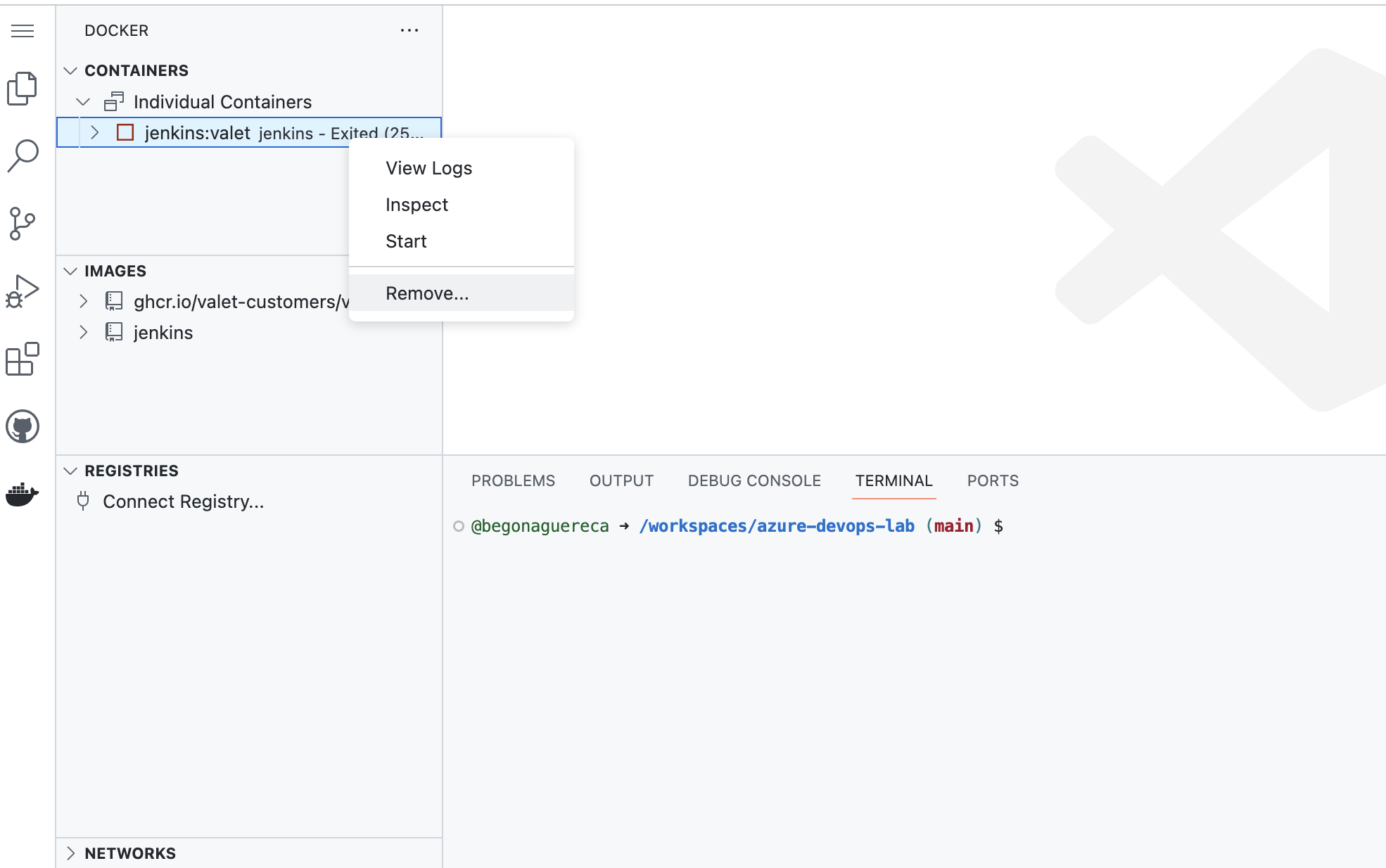
1. Navigate to the `Docker` tab on the left side of the codespace.
|
|
2. Under the `Containers` tab you should see a docker container named `jenkins:valet` listed with a green play button ▶
|
|
|
|
- If you see the `jenkins:valet` container, but it has a red stopped symbol next to it ▢, right click on the container and click on `start`, the container should begin running again.
|
|
- If the container does not start even after trying to manually start it, right click on the `jenkins:valet` container and click the `remove` button. Then, attempt to start the Jenkins server again by following the steps [here](#bootstrap-a-jenkins-server).
|
|
|
|
|