Valet labs for Jenkins
This lab bootstraps a Valet environment using GitHub Codespaces and enables you to spin up a Jenkins instance against which to run the Valet CI/CD migration tool.
Repo template
- Verify you are in your own Repository created from the landing page Valet Labs.
Use Valet with a codespace
- Start the codespace
- Click the
Codewith button down arrow above repository on the repository's landing page. - Click the
Codespacestab - Click
Create codespaces on mainto create the codespace. If you are in another branch then themainbranch, the codespace will button will have the current branch specified. - Wait a couple minutes, then verify that the codespace starts up. Once it is fully booted up, the termininal should be present.
- Click the
- Verify Valet CLI is installed and working. More information on the GitHub Valet CLI extension
- Verify Valet CLI is installed and working
- Run
gh valet versionin the Visual Studio Code terminal and verify the output looks like the below image. Note the valet version will be different than below as the latest version gets pulled down.- If
gh valet versiondid not produce a similar image with a version please follow these instructions Troubleshoot GH Valet extension
- If

Bootstrap Jenkins
- Run the Jenkins setup script. This script will setup Jenkins and ensure it is ready to use. In general, this script should be run first if you are starting a new codespace or restarting an existing one.
-
Navigate to the terminal within your Codespace.
-
Run
source jenkins/bootstrap/setup.shto kick off the creation of your Jenkins instance. -
After a couple seconds, a pop-up box should appear with a link to the forwarded URL for your Jenkins instance.
-
You can also access the forwarded URL by going to the
Portstab in your terminal. Right click on the URL listed under theLocal Addressand clicking theOpen in Browsertab. -
Once you have navigated to the url, the following default credentials have been assigned:
- username:
admin - password:
password
- username:
- Click the
Sign inbutton and you should now see your new Jenkins instance with a few pre-populataed pipelines.
Labs for Jenkins
Perform the following labs to test-drive Valet
- TBD
Troubleshoot GH Valet extension
Manually Install the GitHub CLI Valet extension. More information on the GitHub Valet CLI extension
- Verify you are in the codespace terminal
- Run this command to install the GitHub Valet extension
gh extension install github/gh-valet- Verify the result of the install is:
✓ Installed extension github/gh-valet - If you get a similiar error to the following, click the link to authorize the token
- Restart Codespace after clicking the link
- Verify Valet CLI is installed and working by running
gh valet version

Troubleshooting Jenkins
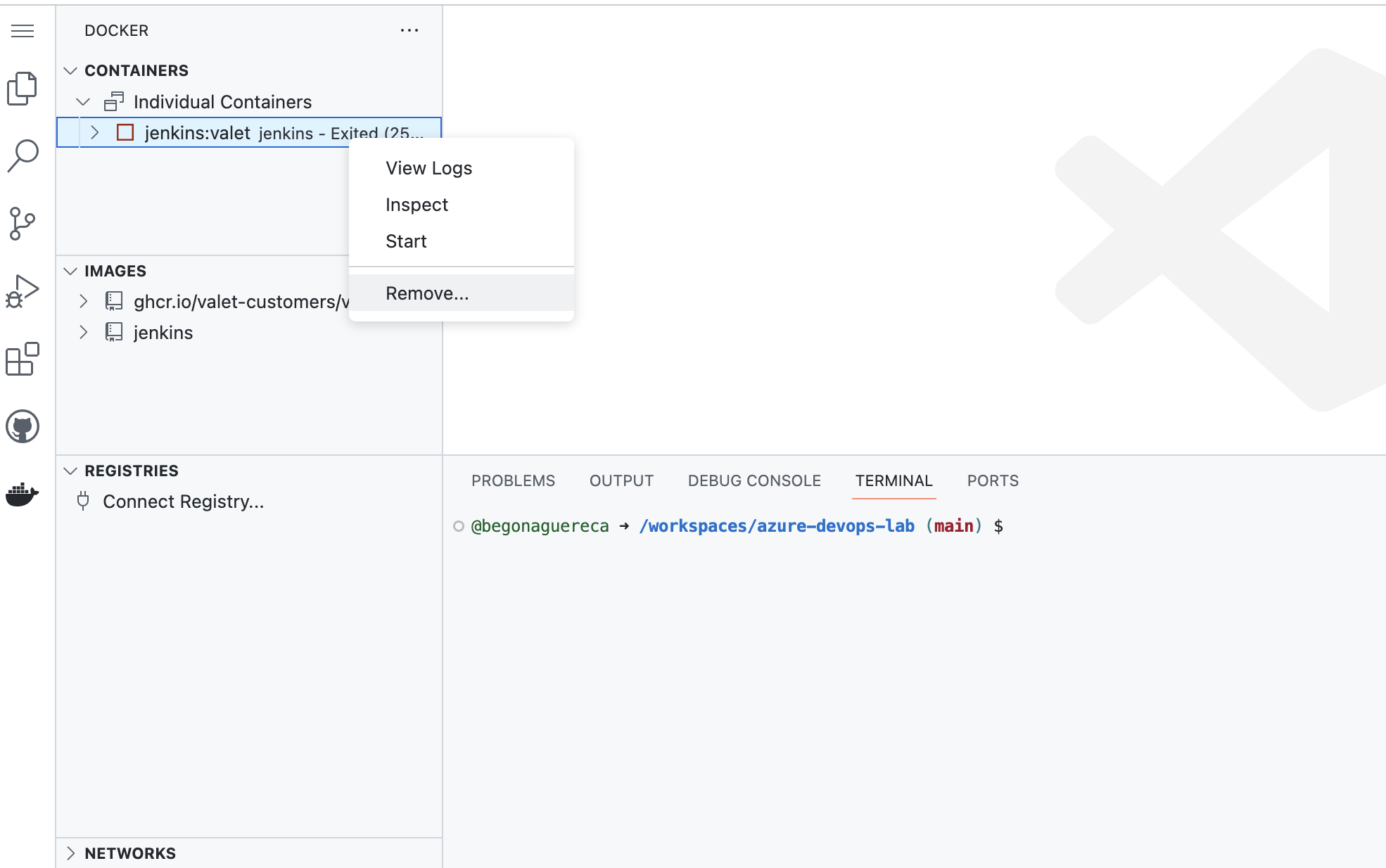
- Navigate to the Docker tab on your left hand side.
- Under the
Containerstab you should see a Docker containerjenkins:valetlisted with a green play button ▶- If you see the
jenkins:valetcontainer, but it has a red stopped symbol next to it ▢, right click on the container and click onstart, the container should begin running again. - If the container does not start even after trying to manually start it, right click on the
jenkins:valetcontainer and click theremovebutton. Next continue by following all the #bootstrap-jenkins instructions again.
- If you see the