
Valet labs for Azure DevOps
This lab bootstraps a Valet environment using GitHub Codespaces and enables you to create an Azure DevOps project against which to run the Valet CI/CD migration tool.
- Use this Repo as a template
- Prerequisites
- Azure DevOps project creation
- Use Valet with a codespace
- Labs for Azure DevOps
Repo template
- Click
Use this templateto create this repository inside your GitHub organization.
Prerequisites
- Azure DevOps organization. Please identify or create an Azure DevOps organization to use: Click to create an Azure DevOps Org
- Note and store the organization name for later.
- Create an Azure DevOps personal access token with the following scopes:
- To do so, navigate to Sign in to your organization
https://dev.azure.com/{yourorganization}. - From your home page, open
user settings, and then selectPersonal access tokens. - Select
+ New Token - Name your token, select the organization where you want to use the token, and then set your token to automatically expire after a set number of days.
- Select the following scopes:
- Agents Pool:
Read - Build:
Read & Execute - Code:
Full, Execute - Project and Team:
Read, Write, & Manage - Release:
Read - Service Connections:
Read - Variable Groups:
Read
- Agents Pool:
- Click
Create - Copy the PAT somewhere safe and temporary.
- To do so, navigate to Sign in to your organization
- Create a GitHub personal access token.
- To do so, navigate to your GitHub
Settings- click your profile photo and then clickSettings. - Go to
Developer Settings - Go to
Personal Access Tokens->Legacy tokens - Click
Generate new token->Legacy tokens. If required, provide your password. - Select at least these scopes:
read packagesandworkflow. Optionally, provide a text in the Note field and change the expiration. - Click
Generate token - Copy the PAT somewhere safe and temporary.
- To do so, navigate to your GitHub
- Add GitHub personal access token to the CODESPACES Secrets tab.
- Navigate to the
Settingstab in your repo - Find
Secretsand click the down arrow - Click
Codespaces - Click
New Codespaces Secretto create a new secret. - Name the secret
VALET_PASSWORD - Paste in the GitHub PAT generated previously
- Click
Add Secret
- Navigate to the
Azure DevOps project creation
-
Add your Azure DevOps personal access token to the Actions Secrets tab.
- Navigate to the
Settingstab in this repo - Find
Secretsand click the down arrow - Click
Actions - Click
New Repository Secretto create a new secret. - Name the secret
AZDOPAT - Paste in the Azure DevOps PAT generated previously
- Click
Add Secret
- Navigate to the
-
Add Azure DevOps personal access token, project, and org to the CODESPACES Secrets tab.
- Navigate to the
Settingstab in your repo - Find
Secretsand click the down arrow - Click
Codespaces - Click
New Codespaces Secretto create a new secret. - Name the secret
AZDO_TOKEN - Paste in the Azure DevOps PAT generated previously
- Click
Add Secret - Click
New Codespaces Secretto create another secret. - Name the secret
AZDO_PROJECT - Type in the Azure DevOps project name. This should be
ValetBootstrap - Click
Add Secret - Click
New Codespaces Secretto create a new secret. - Name the secret
AZDO_ORG - Type in the Azure DevOps organization name
- Click
Add Secret
- Navigate to the
-
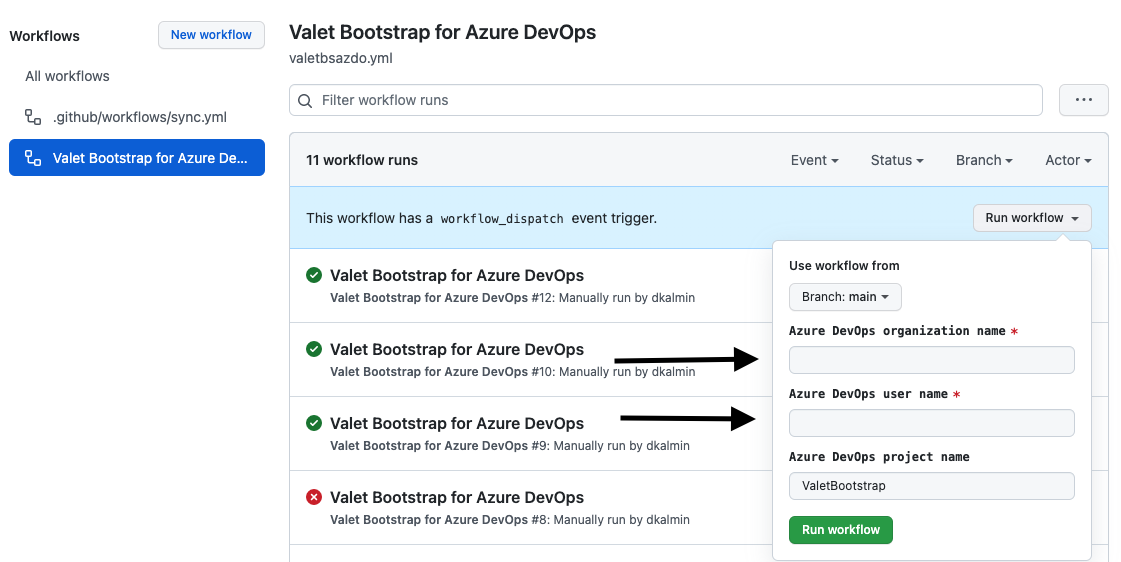
Run the Actions workflow
- CLick the
Actionstab - Select the
Valet Bootstrap for Azure DevOpsaction - Click
Run Workflow - Input the Azure DevOps Organization name identified above
- Input the Azure DevOps user name of the user that created the Azure DevOps PAT above. This will be an email address
- Accept the default Azure DevOps project name or change it to one of your preference
- Click
Run Workflow - Verify the workflow completed successfully
- CLick the
Example
Use Valet with a codespace
- Start the codespace
- Click the
Codebutton above repository - Click the
Codespacestab - Click
New Codespace - Wait a couple minutes, then verify that the codespace starts up. Once it is fully booted up, the termininal should be present.
- Click the
- Run Valet
- Verify you are in the Visual Studio Code terminal
- Change to the Valet directory by typing
cd scripts - Run the valet command by typing
valet. Verify that Valet details all commands. - Start using Valet
Labs for Azure DevOps
Perform the following labs to test-drive Valet